
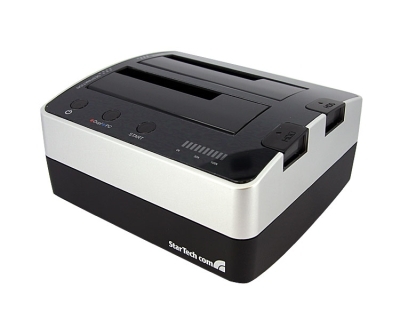
Drive to Drive without a PC -- Quickly!
Overall
Summary
Excellent tool for any Desktop support desk to use for Imaging, backup or just accessing data quickly.
Pros
Makes exact copies of 2.5″ and 3.5″ SATA drives without a PC quickly and also allows access to drives when connected to a PC.
Cons
Maybe I am asking for too much but I would like it to be faster.
Nowadays, there is always the need to reduce the time needed to do just about anything while also make the process more and more efficient. The same applies when you want to make an exact copy of a hard drive without worrying about data loss.
StarTech recently released its USB to SATA Standalone Hard Drive Duplicator Dock that allows you to accomplish just that. You don’t need to slave an internal hard drive or even connect using a USB cable anymore. Do you realize how much time this will save any technician who wants to make an exact copy, put an image on a drive, or to replace a dying drive? You probably don’t, but that’s why we put it to the test. This hard drive duplicator usually retails for $169.99 but you can probably find great deals if you search sites like newegg.com (the lowest I found it for was $149.99).
DESIGN, CONTROLS AND THE PACKAGE
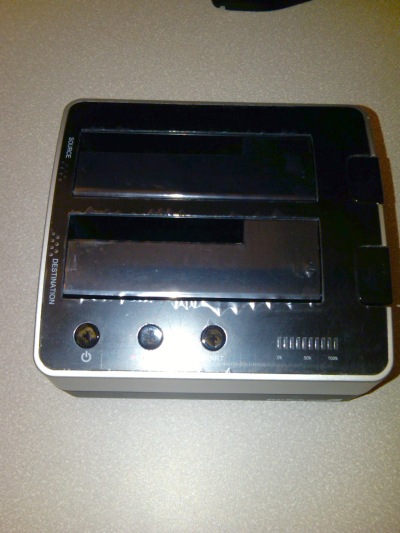
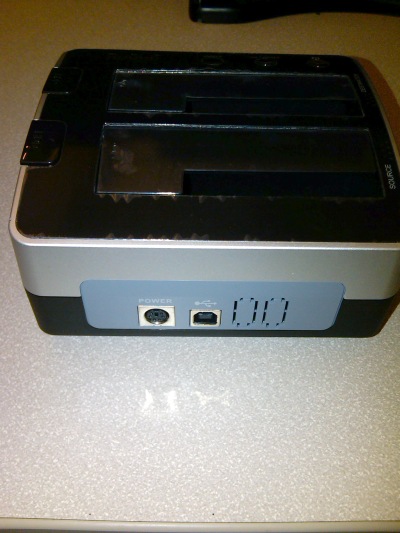
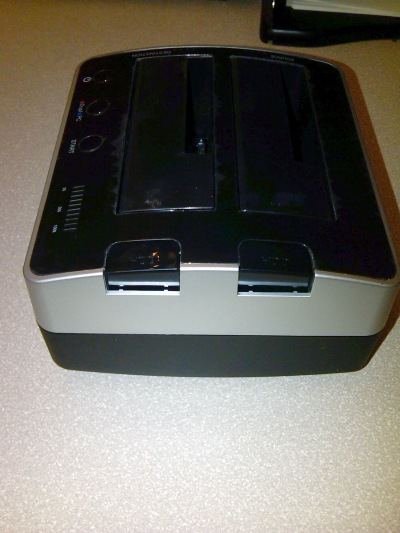
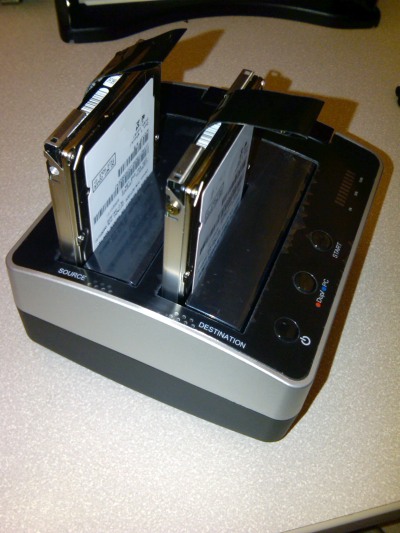
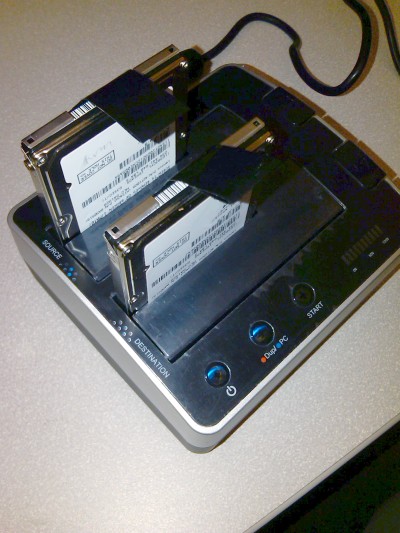
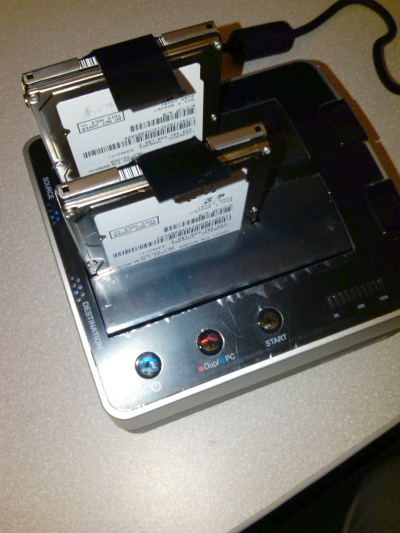
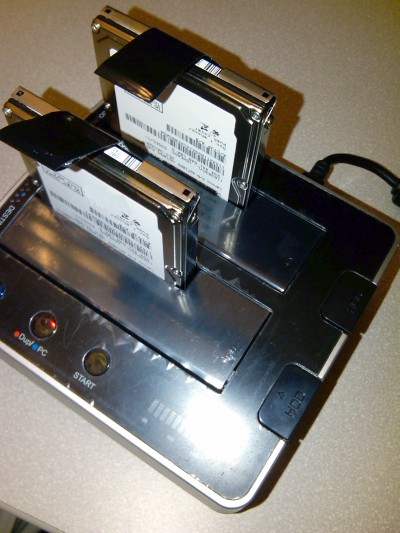
The StarTech SATA Hard Drive Duplicator (SATDOCK22R) is designed to allow two 2.5″ or 3.5″ hard drives to be docked at the same time. There are slots for Source and Destination drives and are clearly labeled (there are indicator lights next to the slots also). There is a power button on the front panel along with the Mode and Start buttons. There is also a progress indicator that will tell you how much of the duplication is complete. There are two eject push buttons to remove the drives (when powered off to avoid damage to the drives). Then there is a power connector and a USB 2.0 port on the back of the unit. This hard drive duplicator weighs only about 20 ounces and is small enough to fit on any desk or work station (5.7″ (L) x 5.26″ (W) x 2.96″ (H)).
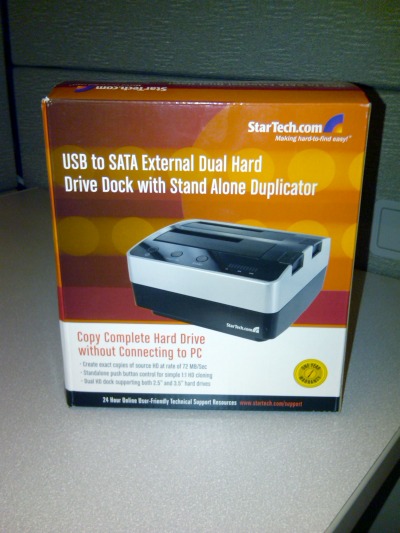
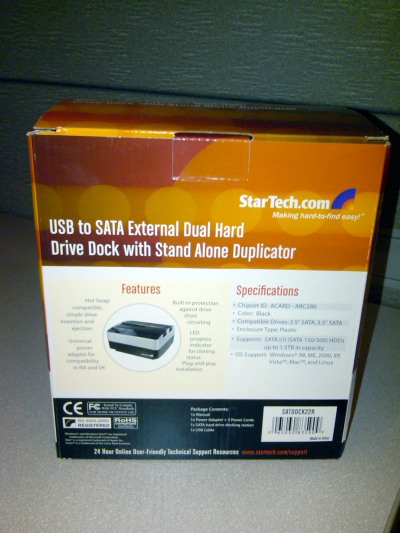
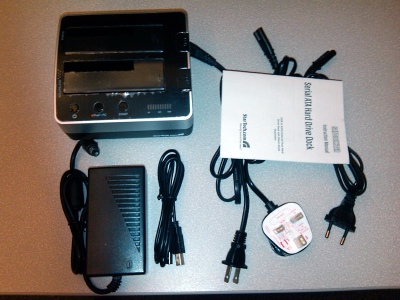
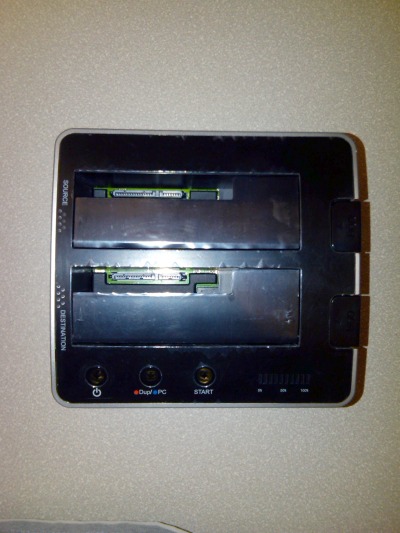
The package includes the SATDOCK22R hard drive duplicator, one power adapter with US UK and UE power cords, a USB type A-B cable, and an instruction manual (that you really don’t need to use this device). The manual comes in handy if you want to learn about what the beeps and different indicator colors mean or to get warranty information. Otherwise, the unit is pretty self-explanatory and easy to use.
THE TEST
I used a Hitachi HTS541010G9SA00 5400RPM 100 GB SATA hard drive as the source with 25 GB of data on the drive (NTFS file system). I used a Hitachi HTS542512K9SA00 5400RPM 120 GB SATA drive as the destination (note I did not pre-format or erase data from the destination drive). I just picked a destination drive from my stockpile (didn’t really care about what happened to the data on it). By the way, these are both 2.5″ drives for laptop computers.
I inserted both hard drives in the appropriate slots (source and destination), pressed in the Mode (Dup/PC) button to put it in Duplicate mode, and powered up the hard drive duplicator. It takes a few seconds to power up and recognizes both drives (the indicator lights next to the slots will turn Blue). If the indicator lights turn red then you know that the drive is either bad or cannot be recognized. Then I pressed the Start button to begin the duplication process (you will hear a beep that indicates the process has started and the progress bar will start flashing).
This particular duplication took approximately 50 minutes to complete from start to finish (you will hear 3 beeps when the duplication finishes). This is by far way faster than taking a ghost image of the source (using Symantec Ghost) then swapping the drives and pushing that same image to the new/destination drive. Taking a ghost image of a 100 GB drive usually takes 45 minutes for us when storing the image on a shared network drive. Then you also have to account for the time that it takes to actually swap the drives physically. Then comes restoring the images to the new drive takes another 45 minutes or so. So overall I duplicated a drive that would have taken me an hour and a half to two hours in 50 minutes.
It is also faster than copying files manually or using any kind of software while having the destination drive as a slave internally or connected using a USB adapter externally. Slaving a drive internally also requires you to open the case and install the driver. Then once you are done copying, you still have to remove or swap them out. So using a hard drive duplicator can really save you a bunch of time.
Now I also want the data integrity to still be the same as the source so to test that I booted to windows on the new drive without any issues what so ever. So the whole process was a success and I saved some time while doing it. This gives me more time to do other things like testing products and writing reviews.
You can also use the supplied USB cable to connect this hard drive duplicator to your computer to access both drives as actual drives on your computer (the drives will be detected by your computer automatically so you don’t have to worry about any driver issues). You will be able to browse both drives just you do with your local C: drive. I used HD Tach to test the data transfer rate using the USB cable and it averages out to 16.3 MB/s. This is decent but not sufficient for copying large amounts of data.
FINAL THOUGHTS
I have used this hard drive duplicator by StarTech to copy and image many hard drives and I actually have very pleased with it. Instead of spending hours duplicating hard drives the old fashion (hard) way, you can use these new hard drive duplicators to save you time, money, resources and makes you more productive and efficient (which comes in handy during these hard economic times). And you can do all of it without installing a single drive or software. Just insert two drives, press a button, and forget about it. For a mere $125 to $170 dollars you can own one of these and not have to worry about wasting time. I would highly recommend this SATA hard drive duplicator to anyone in the need for quick and easy hard drive duplication.