
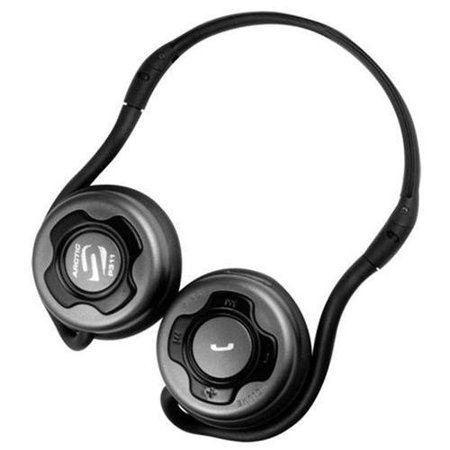
Wireless, portable, quality and long lasting!
Overall
Summary
This Bluetooth headset is great for everyday use no matter how you look at it.
Pros
No wires, very portable, light weight, comfortable, great sound quality, long lasting battery.
Cons
Call quality can improve and low microphone volume.
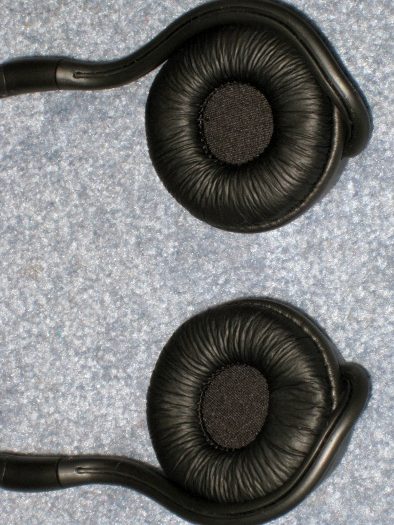
Lately, headphones and earphones have been getting better and better in terms of design and quality. You can get very good bass and overall great sound quality with small earphones, but nothing beats having the comfort of padded headphones with the ability to make and answer calls and all that without any wires.
Today, I am going to test the Arctic Sound P311 Bluetooth Stereo headset to see how well it does when paired with my Motorola Droid X smartphone. I do most of my daily music listening while at work where I also need headphones that can also make and receive calls, like the Arctic Cooling E-351 earphones. The E-351 is great for everyday use but I often have to reach away from my desk while on a call and doing so causes the earphones to pop out of my ears. I really need something without wires. Keep reading to see how well it performs.
PACKAGE AND DESIGN
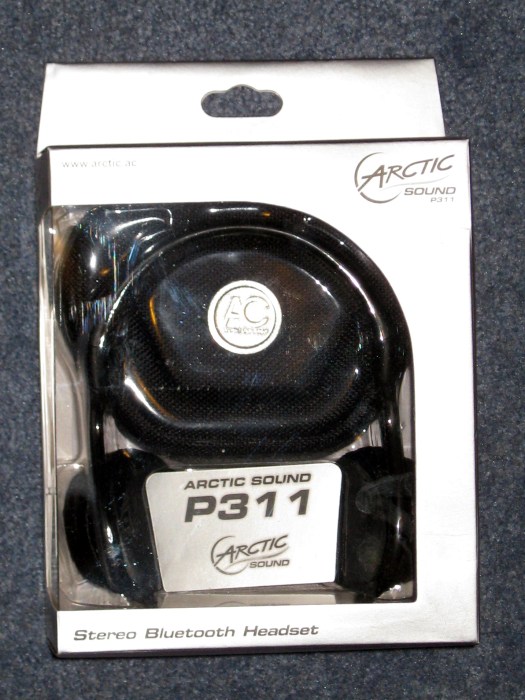
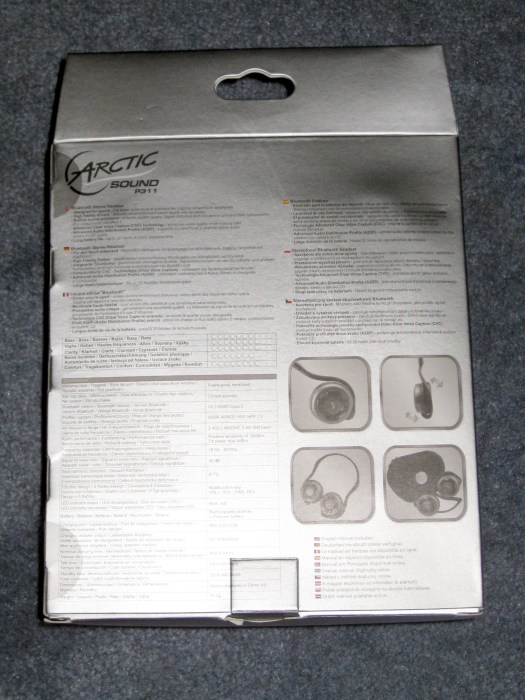
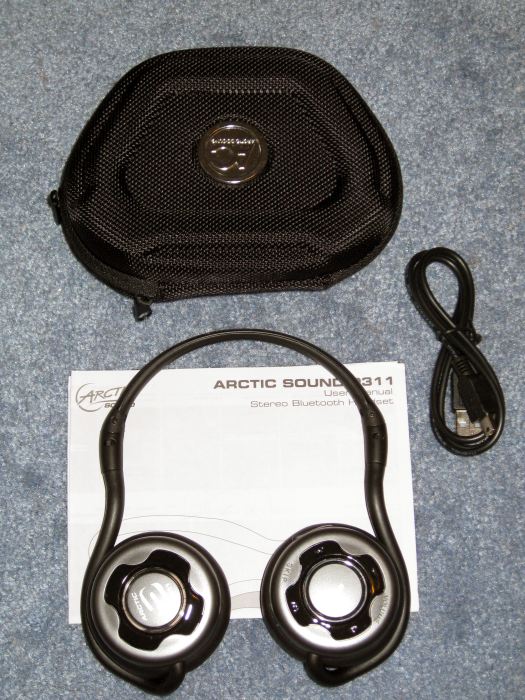
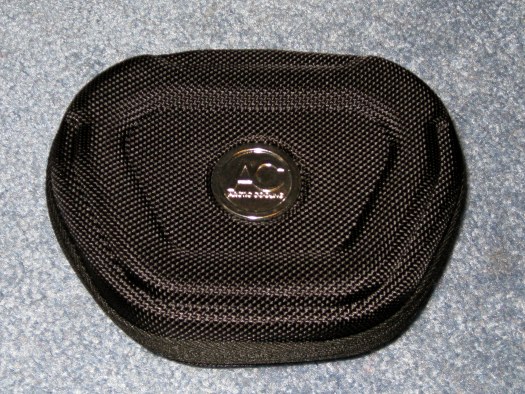
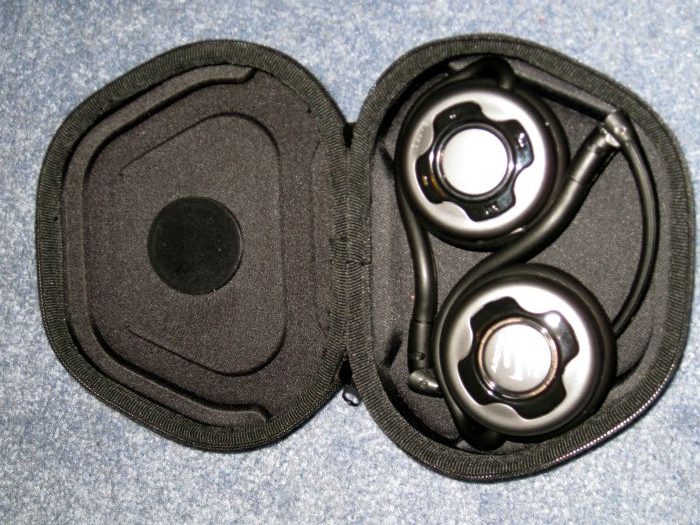
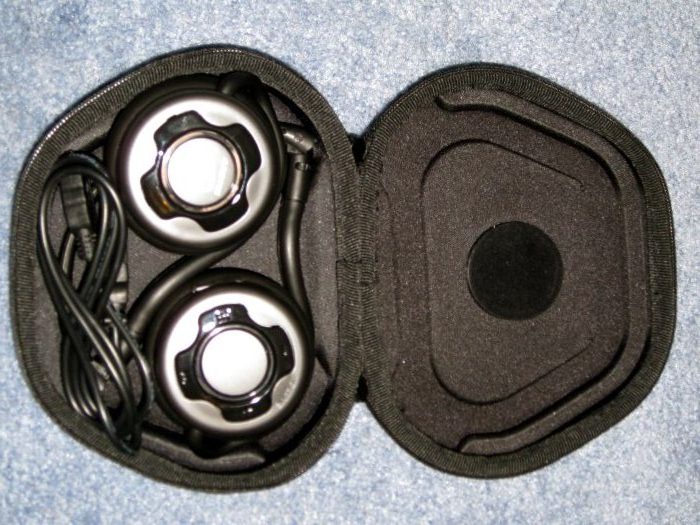
The packaging that the P311 comes in is no different from other Arctic product packaging — it’s plain and simple (all gray). Inside the package, you will have the P311 headset itself, a USB to miniUSB cable (for charging), the user manual, and a protective travel case (to store your headset in or when you travel).
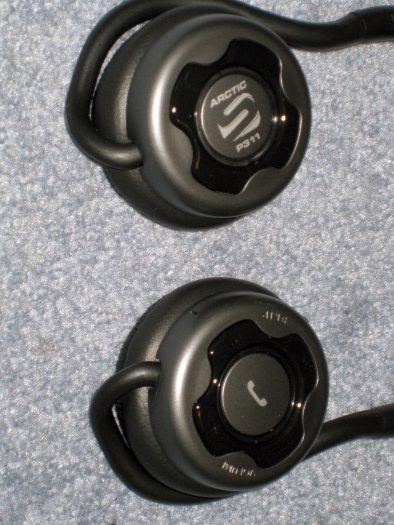
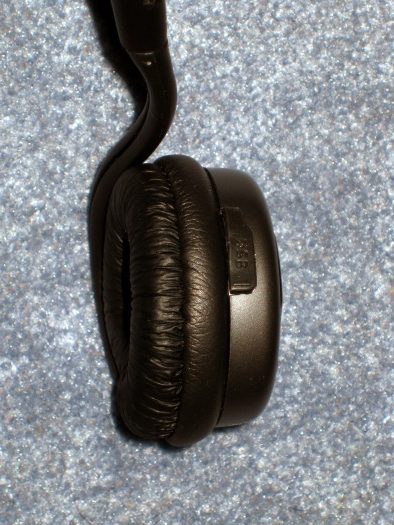
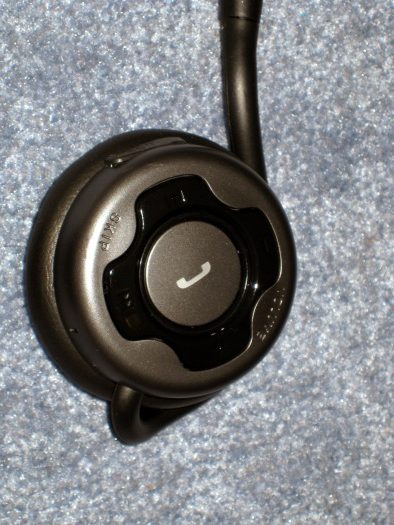
The headset itself is designed with simplicity in mind. On the right earpiece, there are five buttons (Multi-function button with LED indicator, Volume up and down and skip forward and backward) on the front of it, a mini-USB charging port, and a small hole closest to your mouth for the microphone. The multi-function button can be used to turn the headset on or off, answer and end calls or play/pause/stop the music. There also is a LED light around the multi-function button to indicate charging (red LED on), full battery (red LED off), power (blue LED flashing every 7 seconds), pairing mode (red and blue LED will flash alternatively), and lower battery (red LED flashes every 30 seconds). You can use the skip buttons to skip tracks that are playing on your music player (cannot skip through a song) and use the volume buttons to well, increase or decrease the volume (no surprise there). The volume buttons do NOT increase or decrease the volume on your phone but on the headset itself. So you control the volume on your phone separately from the volume on the headset.
SETUP
After taking out the headset from its packaging, you need to fully charge it by plugging it into your computer, an AC adapter like the Arctic C1 or C2 AC power adapters. Technically you can use any AC adapter that can take anywhere from 100 to 240 volts between 50 and 60 hertz and output 5 volts between 1 and 2 amps. But plugging it into your computer is the easiest way to charge this headset. The initial charge may take a while but the usual charging times are between 2 and 3 hours. Once you have it charged, you can now pair it with most devices (phones or computers).
To pair the headset with your phone, you will first need to put the headset in pairing mode. You can do this by pressing and holding the multi-function button for 7 seconds until the LED light starts flashing blue and red alternatively. Then turn on the Bluetooth radio on your phone/computer if it is not already on then scan for available devices. The default name of the headset will be P311 when your device locates it. Just choose it to pair and enter “0000” as the passkey if and when prompted. You will hear some beeps to indicate a successful pairing and connection. If you see the LED flashing blue every few seconds, it is already turned on and ready for use. Check your phone or computer to see if the Bluetooth is paired and connected.
USAGE AND TESTING
I leave the headset plugged into the USB and connected to my computer when not in use so it is always charged. So to test it, I started out with a fully charged headset and tested by making and receiving some calls and also listening to and controlling the music on my Motorola Droid X. As usual, when I get to work I unplug the headset and pair it with my phone and start listening to my music. The headset is unplugged throughout the day and is only plugged back in when I am done for the day and go home. But to test the battery life, I kept it unplugged until it actually died. So with our normal usage and testing, a single full charge lasted us between 21 to 23 hours depending on the distance from the paired device and amount of use. The Arctic says the headset should give about 20 hours of talk time and that by itself is very impressive. The battery life surpassed the 20 hours that Arctic says so I was very satisfied with that.
Making and receiving calls is very simple using the multi-function button. To make a call with my Motorola Droid X, I just have to double-tap the multi-function button to bring up the voice command on the phone and say what I want to do or who I want to call. The microphone picked up my commands very accurately without any issues. During a call, you can use the volume buttons to increase or decrease the call volume. To end a call, simply press the multi-function button once and you are done. Pressing the button and holding it to 2 seconds will redial the last dialed number or reject an incoming call. Call quality was good overall but the caller always complained that my voice was either low or a little soft, but I could hear them just fine and loud enough. Pressing and holding for 2 seconds during a call will switch between mobile phone and headset.
Listening to music and controlling it is also very easy with the P311. Tap the multi-function button once to play or pause (stop) the music. Use the volume buttons to increase or decrease the volume of the music. This does NOT adjust the volume of the music player or the media volume of your phone — it actually adjusts the volume on the headset itself (which is a good thing because the volume on the Droid X is a little bit on the low side). You can also use the skip buttons to well, skip songs forward or backward. Unfortunately, you cannot skip through a song but I don’t usually skip through a song while it’s playing.
FINAL THOUGHTS
I have been very satisfied with the sound quality, ease of use, portability, and comfortability of the P311 Bluetooth headset. I use it daily at work throughout the day to listen to music and to make and receive calls. Even though the microphone is a little bit on the low side, I would still highly recommend this wireless headset to anyone looking for an everyday headset without wires to hold you back. These headsets fit comfortably and help me relax and enjoy my music during my stressful days at work. The bass is very good on this headset for a wireless headset. The quality stays crisp for as long as you have a good Bluetooth connection to the paired device. Plus it allows you to control your music and make and receive calls from the headset itself so no more going back to your phone or computer to change tracks or to make or receive calls. I would highly recommend this headset to everyone for its quality, ease of use, portability, and affordability. It costs roughly about $40 US dollars but you may be able to find it for a lot cheaper if you search online.